
How Git Functions: A Look Inside the .git Folder and Its Role
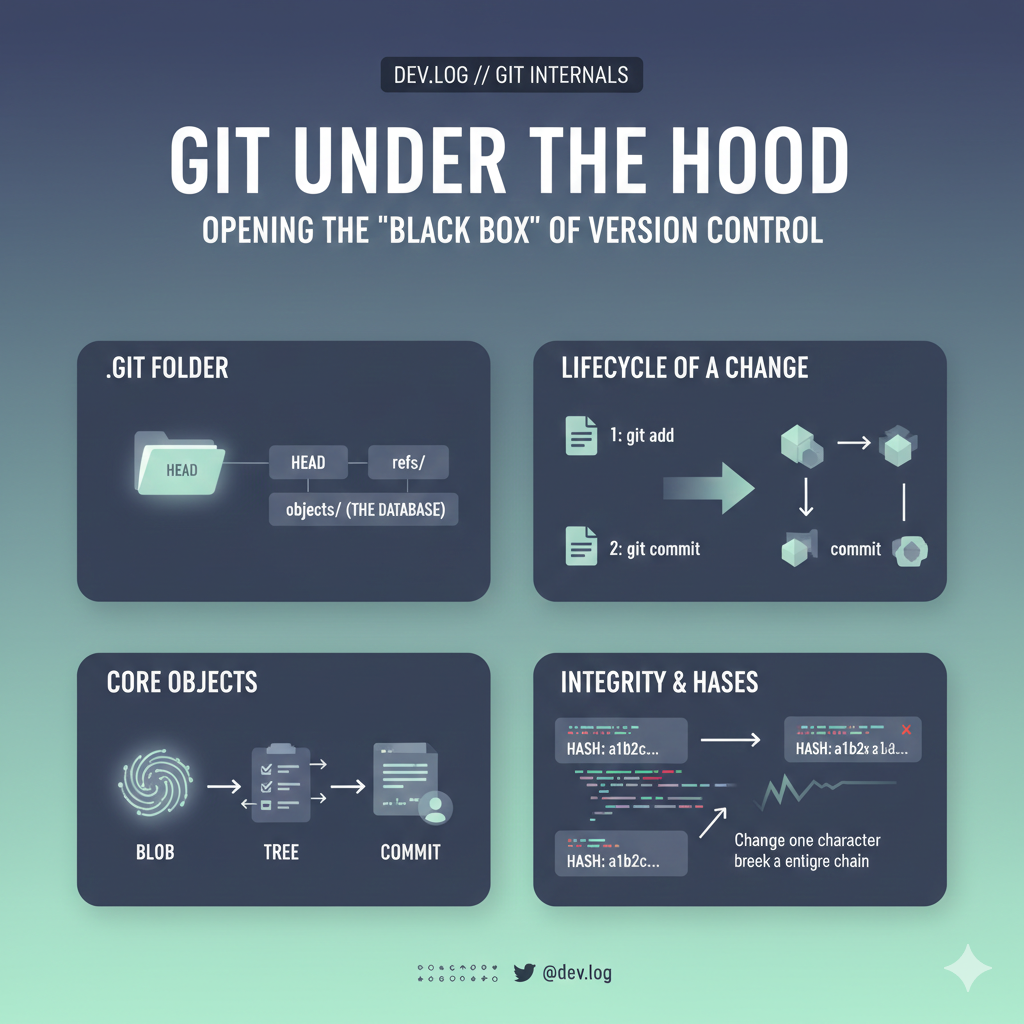
Git Under the Hood: Opening the "Black Box"
We all know the commands: git add, git commit, git push. We type them, magic text scrolls by, and our code is saved. But have you ever stopped to ask: What is actually happening inside the engine?
Understanding Git’s internals isn't just for trivia—it’s the secret to fixing merge conflicts and recovering "lost" code with total confidence.
1. The .git Folder: The Brain of the Operation
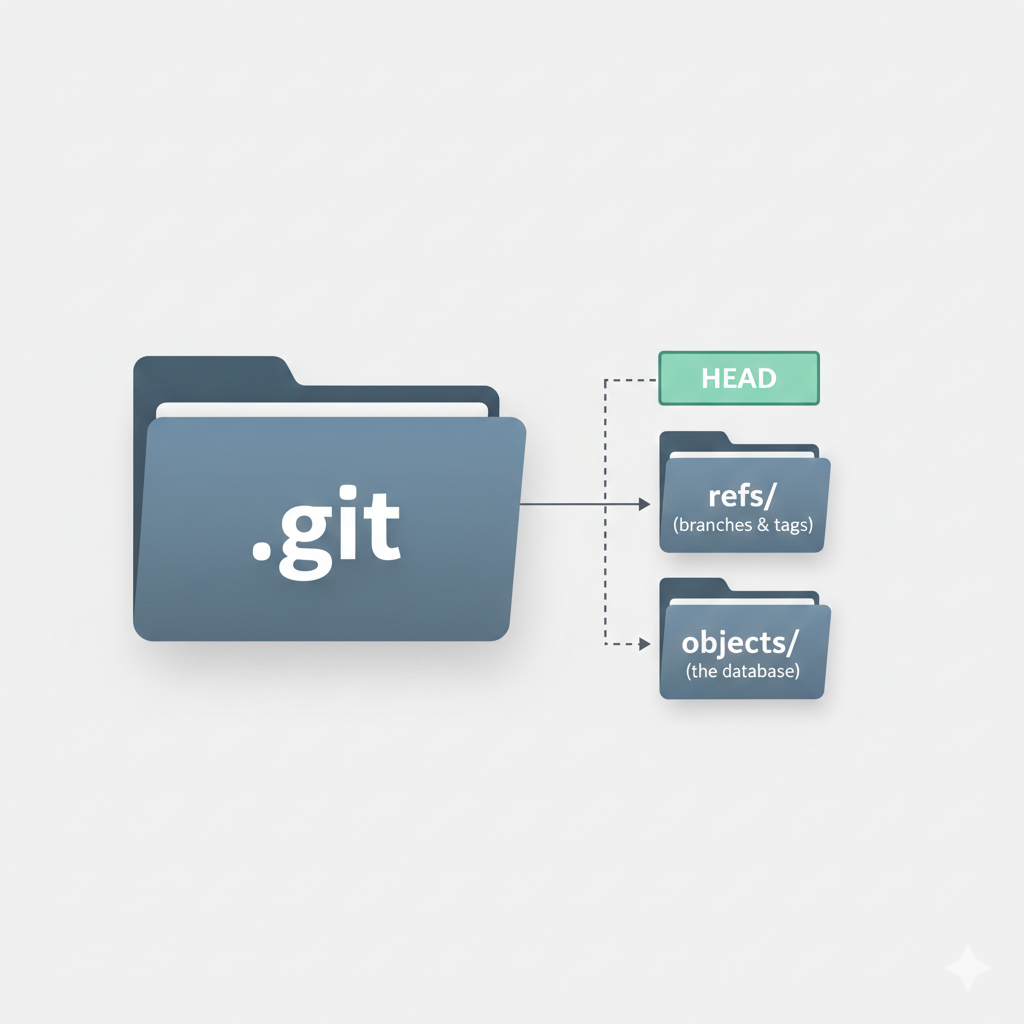
If you run ls -a in your terminal, you’ll see a hidden folder named .git.
This folder IS your repository. * If you delete your code but keep the .git folder, you can restore everything.
- If you delete the
.gitfolder, your history is gone forever. You're just left with simple text files.
What’s inside?
HEAD: A file that tells Git where you currently are (which branch).
refs/: Pointers to your commits (branches and tags).
objects/: The database. This is where the real magic happens.
2. The Building Blocks: Blobs, Trees, and Commits
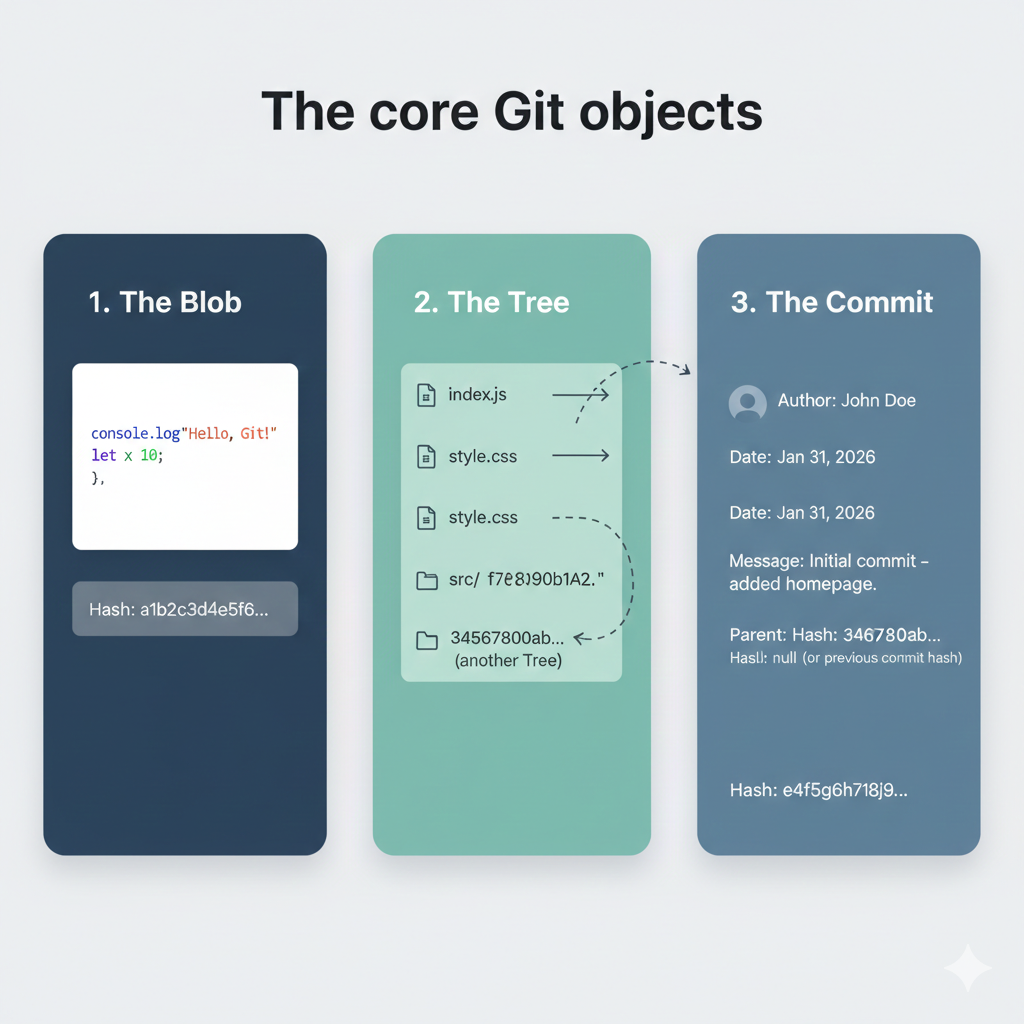
Git is a "Key-Value Store." You give it content (Value), and it gives you a unique ID (Key). It uses three main objects:
I. The Blob (Content)
When you save a file, Git ignores the filename and focuses only on the content. It compresses that text and stores it as a "Blob."
Logic Check: If you have two different files with the exact same "Hello World" text, how many Blobs does Git create? (Answer: Just one! Git is efficient.)
II. The Tree (Structure)
Since Blobs don't have names, the Tree object acts like a directory listing. It maps filenames (like index.js) to their corresponding Blob hashes.
III. The Commit (Snapshot)
The Commit object ties it all together. It contains:
A pointer to the Tree.
Author and timestamp.
A pointer to the Parent Commit (the history link).
3. The Lifecycle: From add to commit
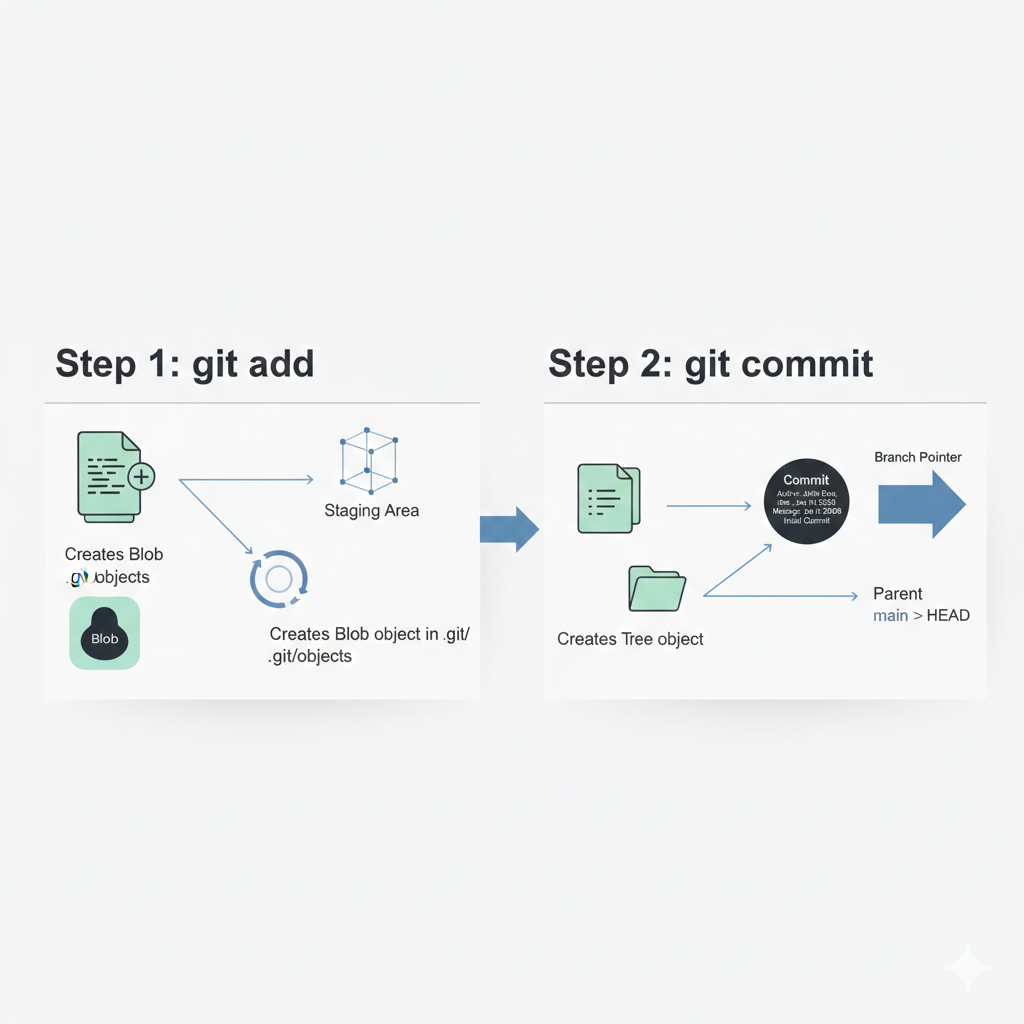
Let’s trace the journey of a single change:
Step 1: git add .
The moment you run this, Git immediately creates a Blob for your content and puts it in the objects/ folder.
- Takeaway:
git addsaves your content to the database even before you commit!
Step 2: git commit -m "Message"
Git now captures the project structure. It creates a Tree to record your filenames and a Commit object to record the "Who, When, and Why." Finally, it moves your branch pointer to this new commit.
4. Why the Long Hashes? (SHA-1)
You’ve seen those long strings like e4a2b9.... These are Hashes. Because the hash is calculated from the exact content:
If you change one single space in your code, the Blob hash changes.
This causes the Tree hash to change.
Which causes the Commit hash to change.
This makes Git immutable. You can’t secretly change old code without breaking the entire chain of hashes!
Guided Logic: Building Your Mental Model
Imagine you accidentally deleted a file from your folder, but you haven't committed yet. You know you ran git add five minutes ago.
Think about the lifecycle: Since git add immediately creates a Blob in the .git/objects folder, is your work actually lost? (Hint: No! The content is already in the database; you just need to find its hash!)
Conclusion
Git isn't magic; it's a map of Content (Blobs), Names (Trees), and History (Commits).
Next Step: Want to see the raw "brain" of your project? Run this command in your terminal: git cat-file -p HEAD
It will show you the raw Commit object. You can then copy the Tree hash and run the command again to see your file structure!


